
Instructions
- Select Finance - Nominal from the Caliq menu.
- Select F9 Nominal Structure.
- Select F6 Budgets & Forecasts.
- Select F6 New Budget.
- You will be presented with a Create New Budget For dialogue box.
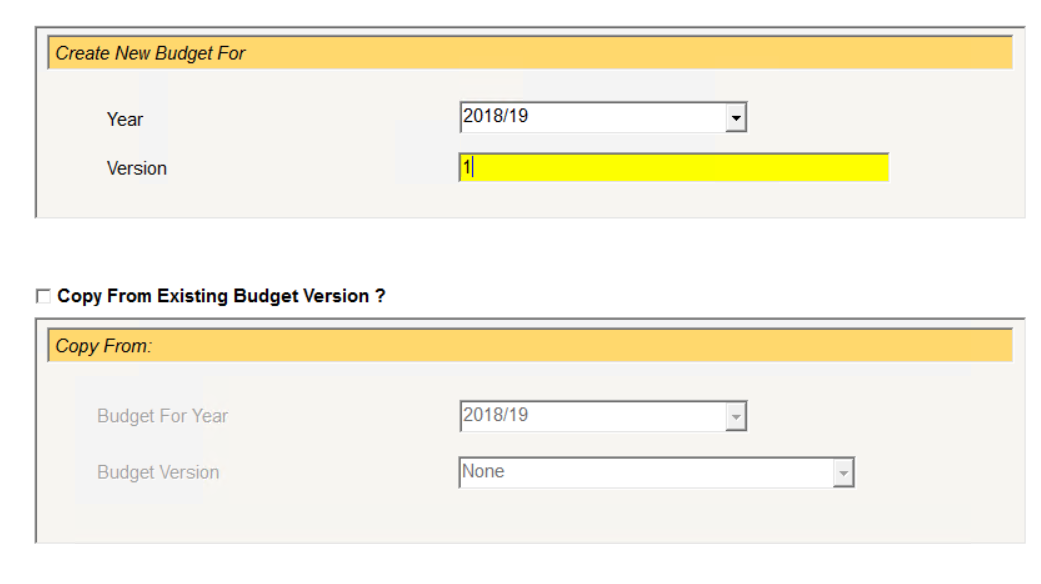
- From the Year dropdown, select the appropriate year for the new budget.
- In the Version field, enter a number to set the version number.
- Select F5 Create Budget.
- A new budget has now been created. Until it is implemented, it will be in Provisional status. You will be presented with a screen as follows:
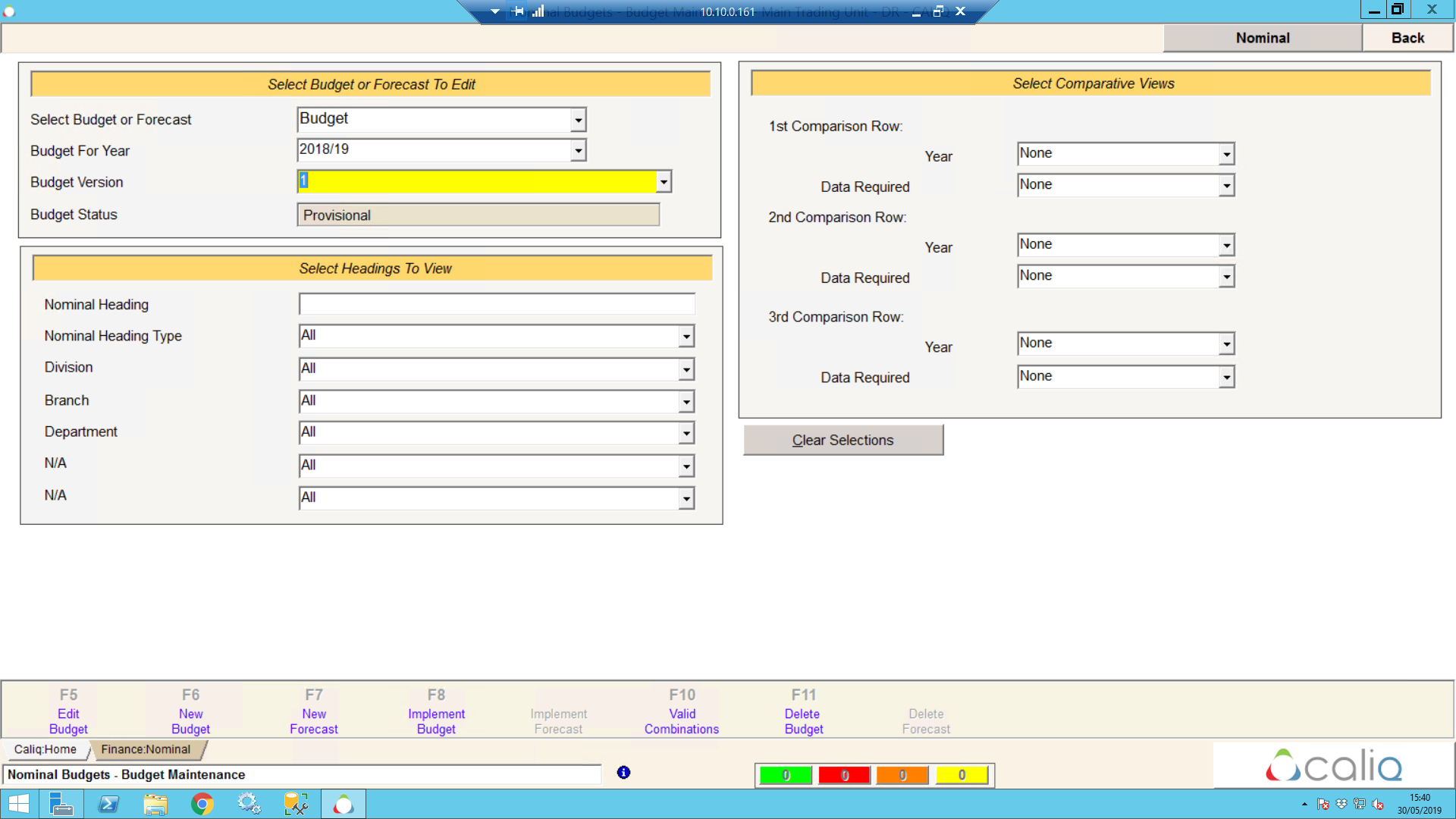
- The budget is now created and is ready for editing.
- Select F5 Edit Budget. You will be presented with a screen as follows:
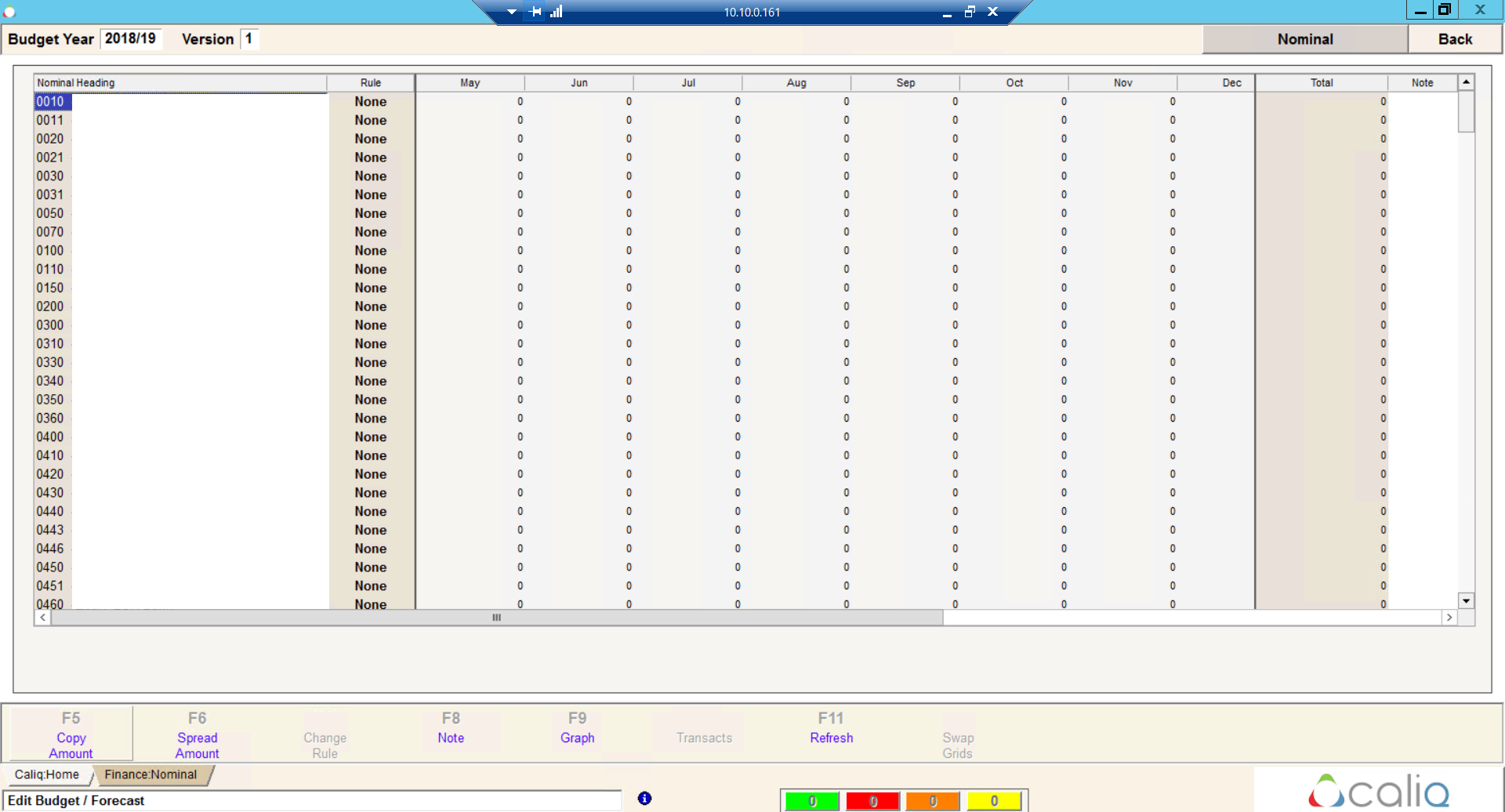
- Click into the grid next to any Nominal Account for the relevant period and enter your budget figures.
- Once complete, select Back.
- To activate the budget, select F8 Implement Budget.
Top Tip:
Whilst editing the budget grid, the following tools may be useful:
- F5 Copy Amount - This function will copy the figure entered into the grid across all periods, reducing the requirement to manually key this in all other NL boxes.
- F6 Spread Amount - This function will spread the figure entered into the grid across all periods, reducing the requirement to manually key this in all other NL boxes.