
Budgets
You can setup Automatic Budget Generation per NL Code or you can use the budget screen to Copy/Spread or enter the budgets manually.
Setting Auto Budget Generation against certain NL Headings if required
Search and select NL Heading
F5 edit
Tick the option “Automatic Budget Generation”
F9 Budget Rules
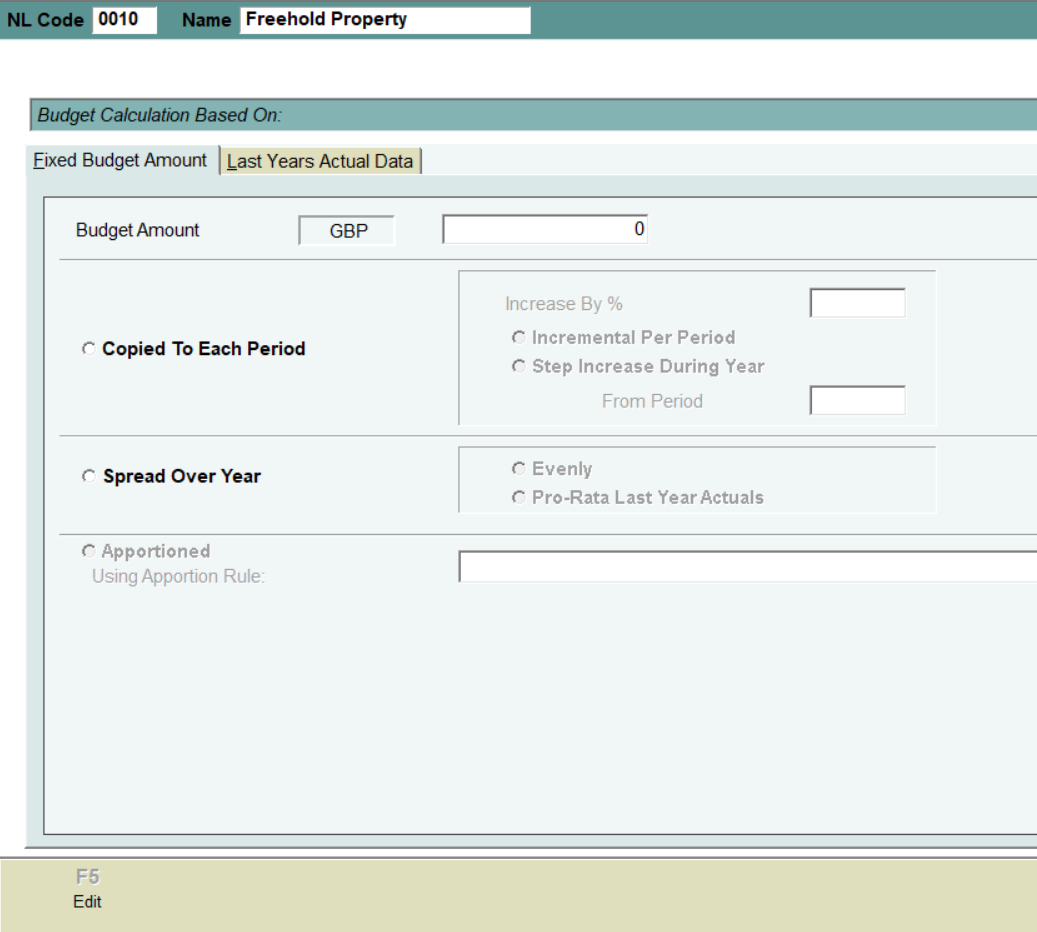
You then have the options of
Fixed Budget Amount
F5 Edit
Enter the Budget Amount
Then select if you want to
Copy to each period and Increase by a %
Or
Spread the total budget figure over the year
F12 Apply Changes
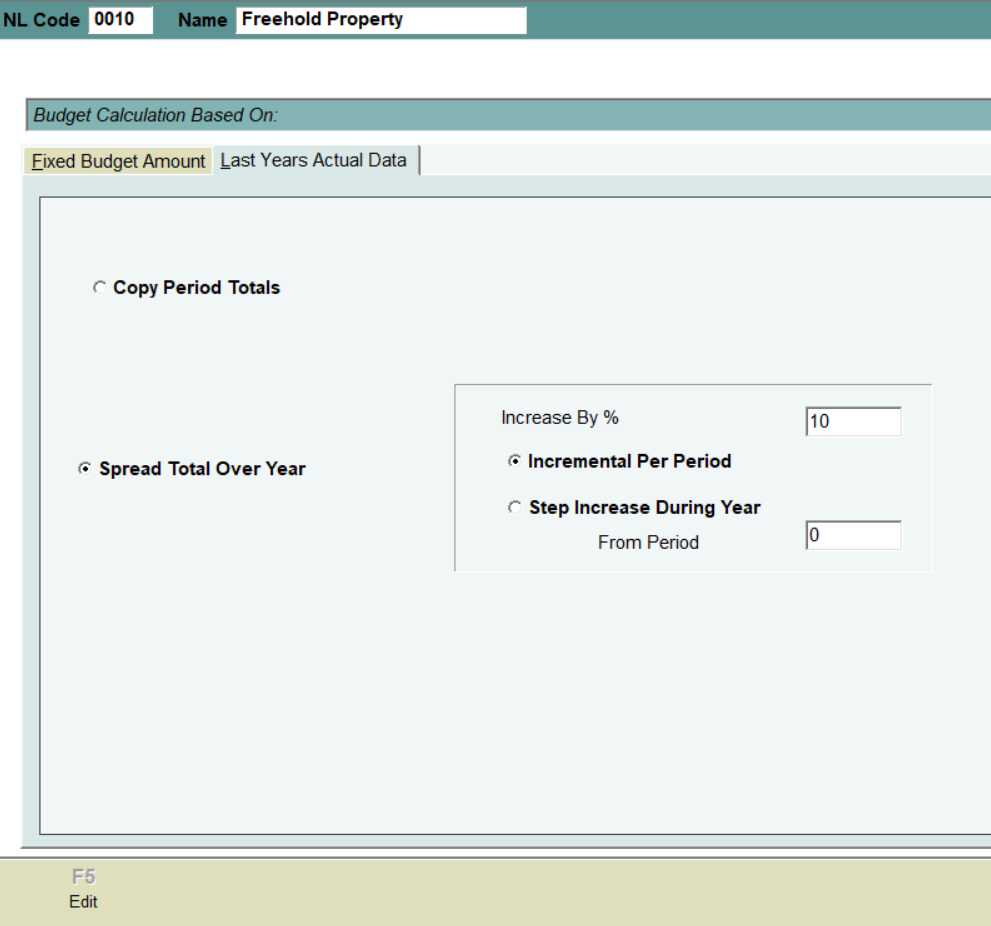
Last Years Actual Data
F5 Edit
Enter the Budget Amount
Then select if you want to
Copy Period Totals
Or
Spread the Total Over Year and you then have the options to enter a % Increate and Incremental per period or Step Increate during period.
F12 Apply Changes
Adding a New Budget
Finance Desk – NL
F9 Nominal Structure
F6 Budgets Forecasts
F6 New Budget
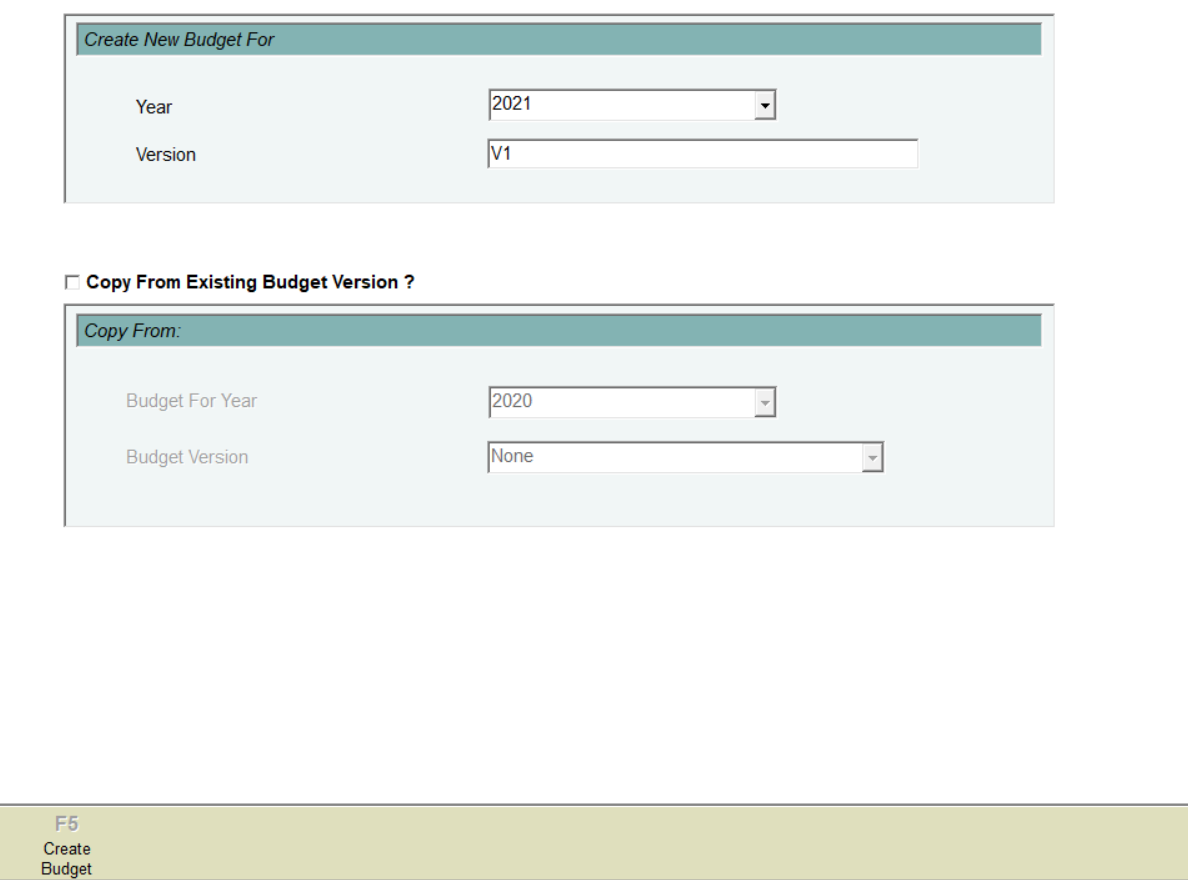
Select the Year to create the Budget for
Enter the Version Number as you can create multiple budgets per year.
You can copy an existing budget from a previous year if you have one.
F5 Create Budget
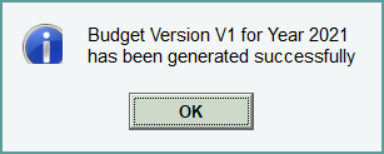
The following popup appears.
Select OK
You will then be taken into the Edit Budget/Forecast screen.
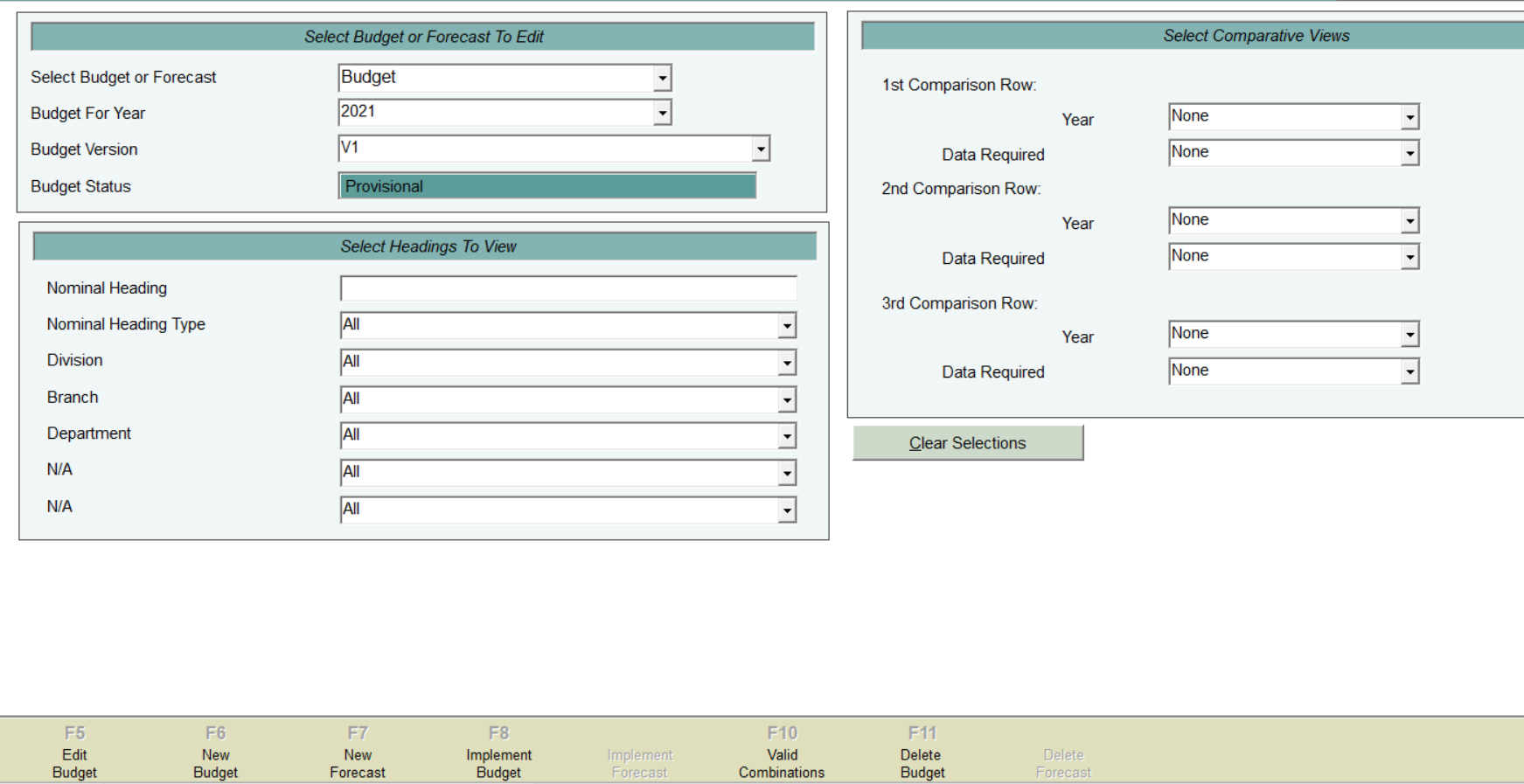
Select the Budget/Year/Version number that you want to edit.
The Budget Status will remain as Provisional until you Implement the Budget.
There are filters for Accounts that can be selected
You can select Comparison values to be shown on the screen. Actual, Budgets, Forecasts.
F5 Edit Budget.
The following screen appears showing the NL codes selected and the periods for the financial year selected.
Any NL Codes where you have set the Auto Budget Generation will appear with values already.
Any Comparison Values selected will be shown in the bottom grid
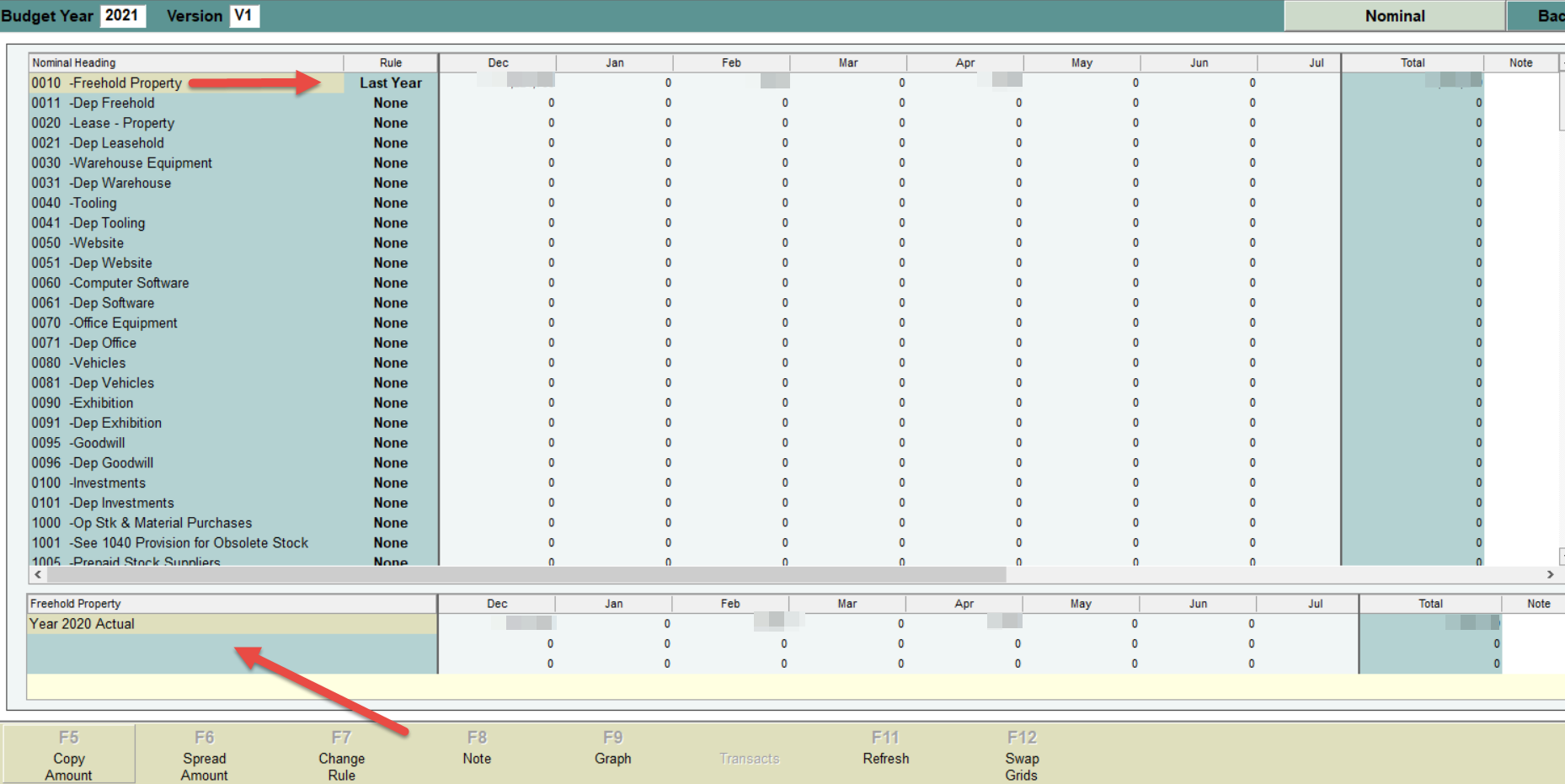
You then have the following options.
F5 Copy Amount
Highlight the NL code, Enter the Budget Amount and this will be copied into each period.
F6 Spread Amount
Highlight the NL code, Enter the Amount to be spread across all periods.
Alternatively, you can type into the grid against each NL code/period if you want to enter the amounts manually.
Adding a New Forecast
You can only add a Forecast for the current financial year.
Finance Desk – NL
F9 Nominal Structure
F6 Budgets Forecasts
F7 New Forecast
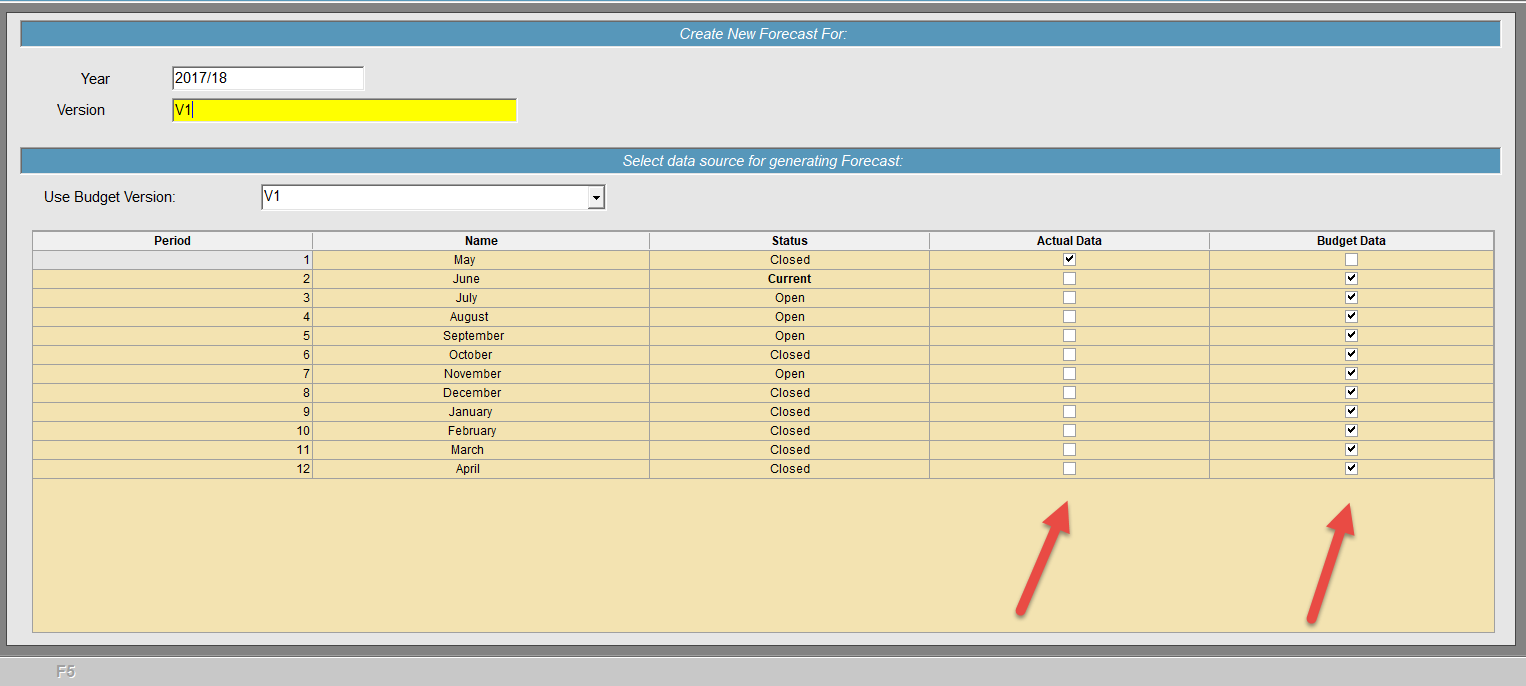
The year will default to your current financial year
Enter a Version Number
The Budget Version will default to the Budget version you have created for this financial year. If you have multiple versions you can select the one required.
The data used to create the Forecast will be the Actual data for any closed periods and the Budget Data for any other periods in the year.
So below May Period end has been run so it used the Actual Data
All the other periods will use the Budget data selected ads there is no actual data yet.
Once the Forecast is created you can edit it by selecting the Forecast.
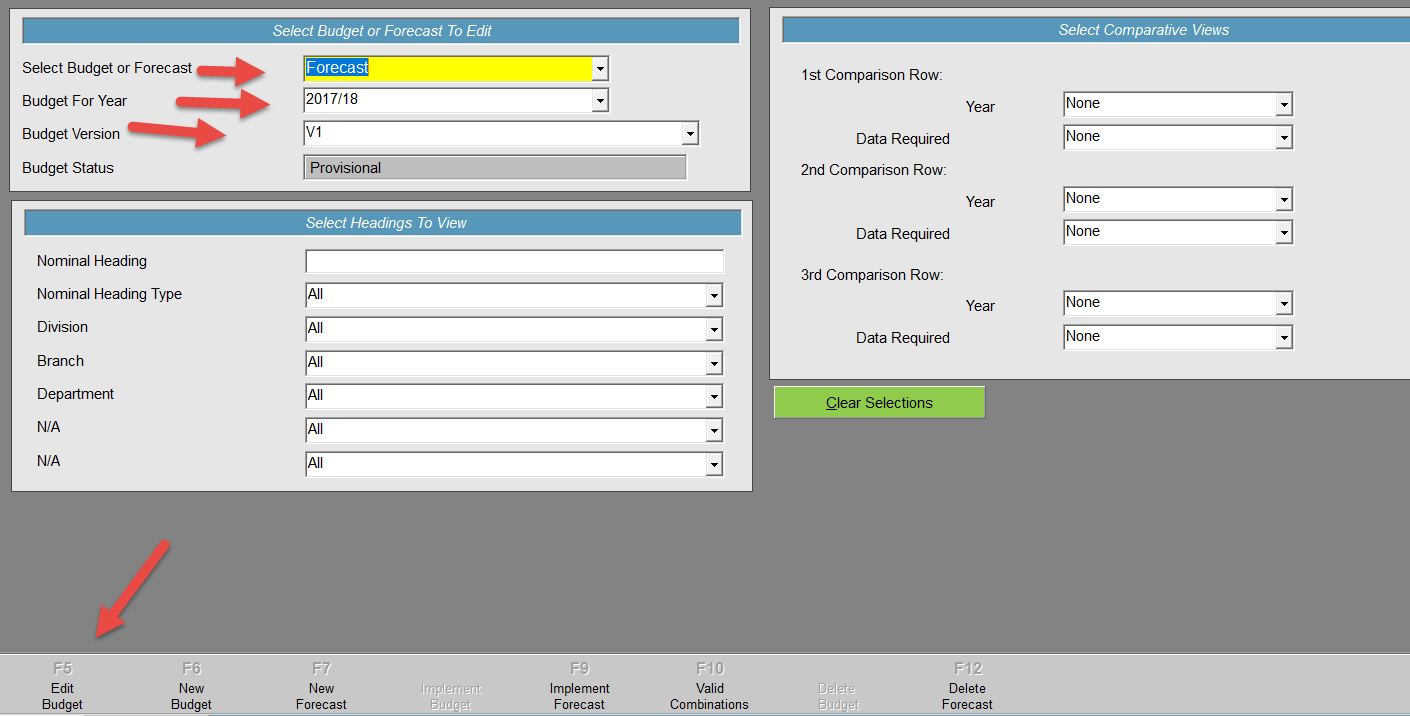
You then have the same options for editing the Forecast as you do for a Budget.
Once you are happy with your Forecast and Budget for the year you can Implement these.
F8 Implement Budget
F9 Implement Forecast